“System Data” on macOS is basically Apple’s junk drawer. It’s not one thing—it’s a grab-bag of stuff the system doesn’t neatly categorize.
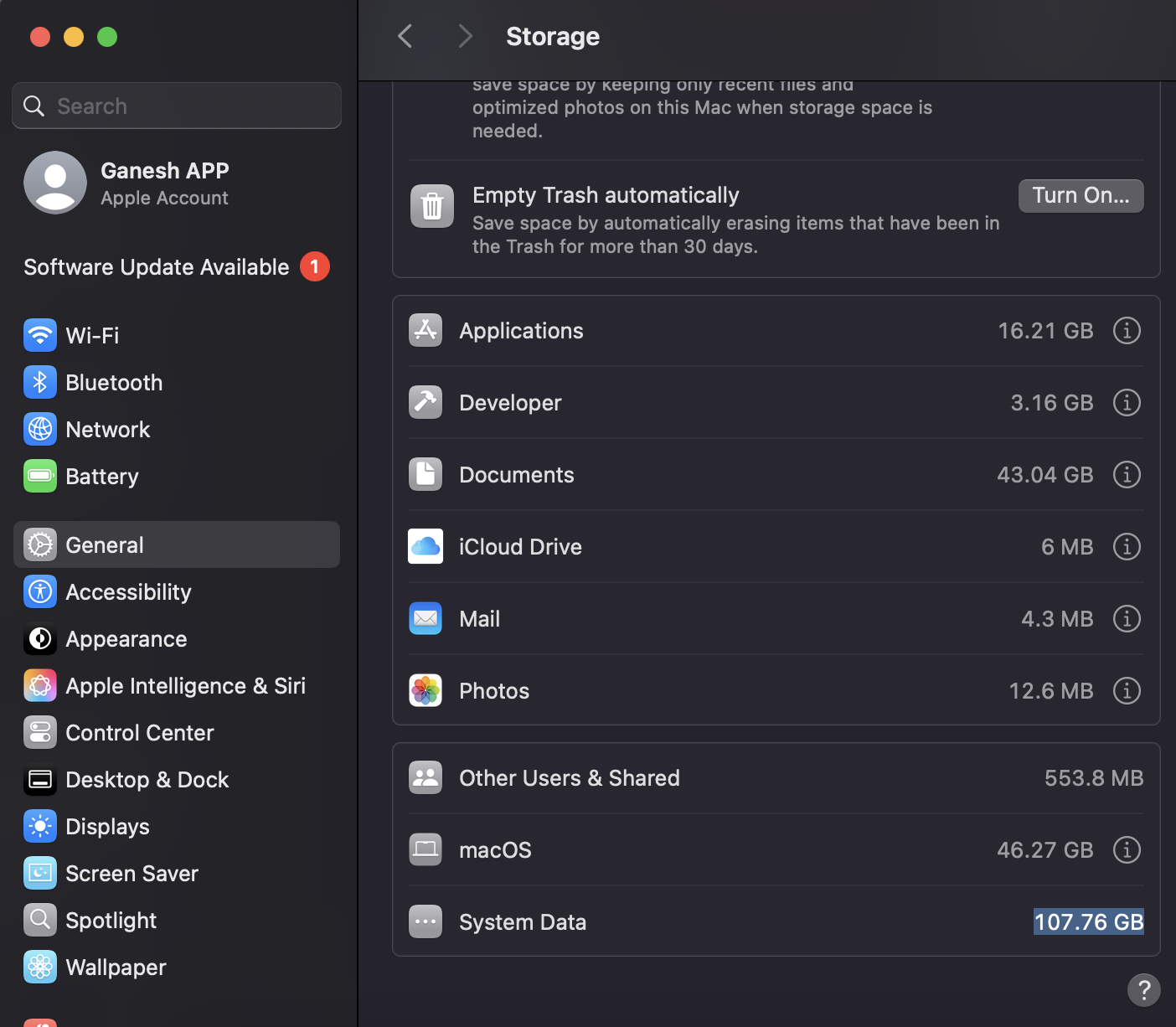
What “System Data” actually includes
1. Caches (can get huge)
- App caches (Chrome, Slack, VS Code, Spotify, etc.)
- System caches
- Developer tool caches (Xcode, simulators, Flutter, Android, npm, pip, etc.)
These are safe to delete—macOS will regenerate them.
2. Developer junk (very common if you code)
- Xcode DerivedData
- iOS Simulators
- Android emulators
- Flutter / Dart build outputs
- Node modules cache
- Python virtualenvs + pip cache
- Docker images & volumes (big offender)
This alone can be tens of GB.
3. Local Time Machine snapshots
If you use Time Machine:
- macOS keeps local snapshots when the backup disk isn’t connected
- These show up as System Data
They auto-delete when space is needed, but they still count.
4. Logs & diagnostic files
- System logs
- Crash reports
- Analytics logs
- Old .log files that never got cleaned
5. System support files
- Fonts
- Language resources
- Spotlight index
- Siri / Apple Intelligence assets
- Virtual memory (swap files, sleepimage)
6. “Deleted but not really deleted” files
- Files moved to Trash but held open by a process
- Old app leftovers after uninstalling apps
- Orphaned support folders in ~/Library
Why macOS doesn’t explain it clearly
Apple intentionally hides detail here to:
- Prevent users from deleting critical system files
- Avoid support nightmares
- Encourage “it just works” behavior
Unfortunately, it also means no transparency.
macOS classifies anything under ~/Library that isn’t:
- Photos
- Documents
- Apps
as System Data, even if you created it.
How to see what’s actually eating the space
Option 1: Quick Terminal check (safe)
du -h -d 1 ~/Library | sort -halso:
du -h -d 1 /Library | sort -hYou’ll usually see the culprit immediately.
High-impact cleanup targets (very likely wins)
~/Library/Developer/
~/Library/Caches/
~/Library/Containers/
~/Library/Application Support/
If you use:
- Docker → prune images & volumes
- Xcode → delete DerivedData + unused simulators
- Flutter → clean build folders
- Python → remove old venvs
- Node → clear npm/yarn cache
~/Library/Containers
This is sandboxed app data for:
- VS Code
- Apple apps
- Slack, Notion, Chrome helpers
- Some dev tools
du -h -d 1 ~/Library/Containers | sort -hYou’ll usually find:
- Old app containers
- Apps you uninstalled months ago
Safe to delete entire folders for apps you no longer use Don’t touch active Apple system ones unless you know them
~/Library/Application Support
Contains:
- Docker (Docker Desktop, containers, volumes)
- VS Code extensions
- Browsers
- AI models
- Flutter, npm, yarn caches
- Random app junk
du -h -d 1 ~/Library/Application\ Support | sort -hYou’ll almost certainly see something like:
- Docker → big
- Code
- Microsoft
- Cursor / VSCode
This is where you’ll reclaim 10–30 GB easily.
~/Library/Android
100% dev-related.
Contains:
- Android SDKs
- System images
- Emulators
- Old API levels
If you don’t actively need all versions:
rm -rf ~/Library/Android/sdk/system-images/*Or via Android Studio → SDK Manager (cleaner).
~/Library/Caches
Totally safe. You can delete everything inside:
rm -rf ~/Library/Caches/*macOS + apps will regenerate what’s needed.
Logs & Group Containers
Fast wins (safe, fast cleanup with minimal thinking)
rm -rf ~/Library/Caches/*
rm -rf ~/Library/Logs/*
Then:
- Clean Android SDK
- Inspect Application Support
- Inspect Containers
Time Machine local snapshots
Check:
tmutil listlocalsnapshots /Delete (example):
sudo tmutil deletelocalsnapshots 2025-01-26-123456Is it dangerous to clean System Data?
- Don’t delete random files inside /System
- Totally fine to clean Caches, Developer, Logs, Snapshots
macOS is very good at regenerating what it needs.